Features
What ArgueSecure does, in the order a team uses it: build the argument together, put numbers on it, report it, and keep the record.
Live collaboration
An assessment is built by several people at once, in a workshop room or over days. Three views read the same live data: the chart is a board for the room, the list is for filling in values, and the report presents the result. Switching between them never reloads the page.
- Presence. Avatars show who has the assessment open, and a coloured ring marks the node each person has focused.
- One editor per node. A node being edited is read-only for everyone else, with the editor's name on it. Other nodes stay free, and a reservation expires within a minute if a tab closes.
- Saved as you type. If a node changed on the server since you loaded it, you choose Keep mine, Take theirs or Cancel. Nothing is overwritten silently.
- Comments and assignees. Threaded comments can be resolved, @mentions notify the person, and an assigned node appears on their dashboard.
- Roles. Assessments are private until shared. Share with named people as viewer, commenter, editor or manager.
Argument graph
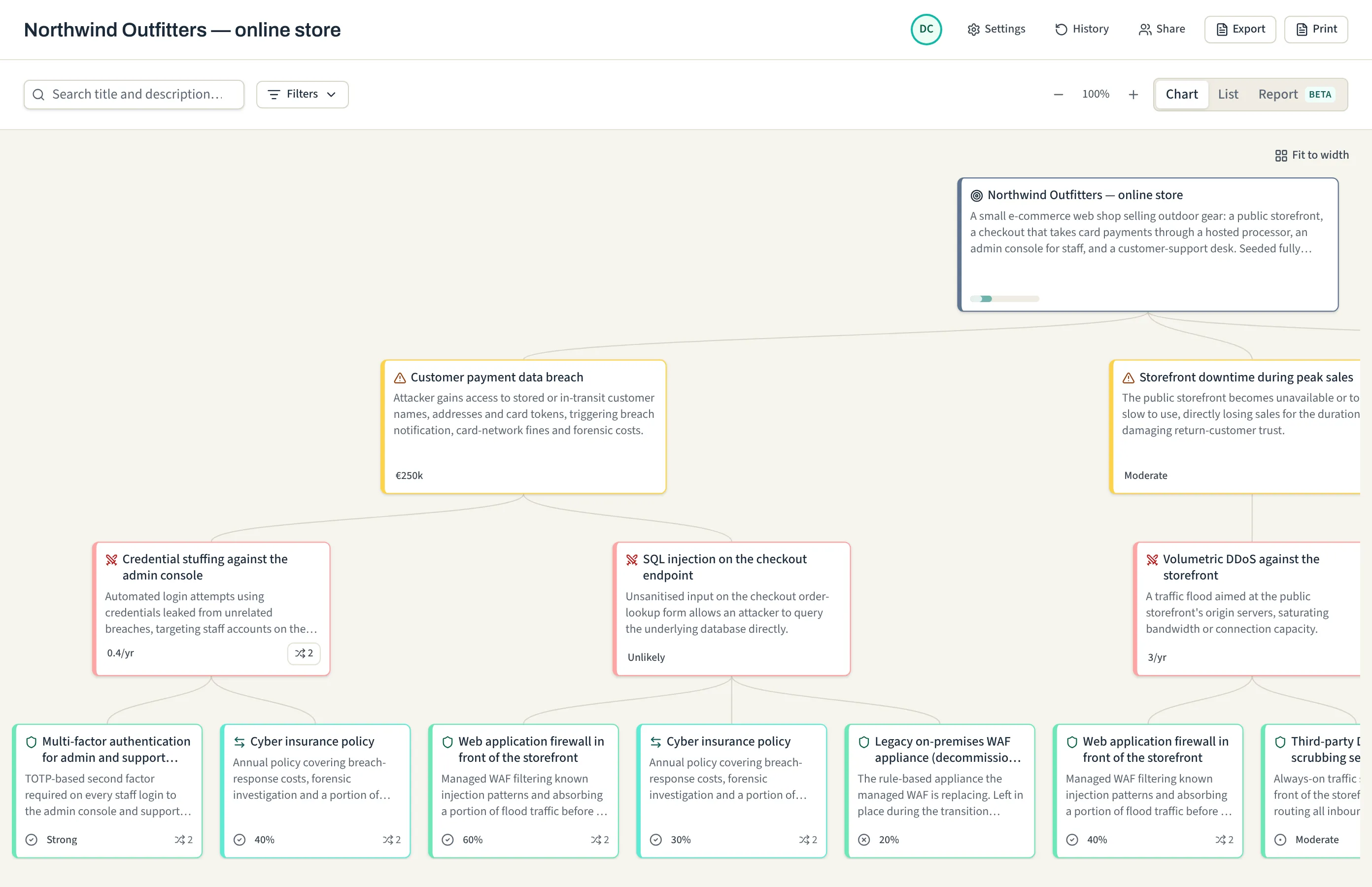
Every assessment is shaped as Target of Assessment, Risks, Attacks, then Defences and Transfers. An attack is a claim about how a risk happens and a defence is a counter-claim, so the structure shows where an argument is missing. How it works explains the model.
- A graph of shared parts. An attack can sit under several risks and a defence under several attacks. Editing a shared node edits it everywhere, and a badge shows how many places it appears in.
- Reuse by linking. While you type the title of an attack or defence, matching nodes already in the assessment are offered.
- Strength per attack. A defence has its own strength against each attack it is linked to, with a note on why.
- Find the gaps. Filters dim the nodes that do not match a label, status, type or missing values. Branches collapse and show how many items they hide.
- Move things around. Drag a card onto another parent to move it or link it there as well.
Honest quantification
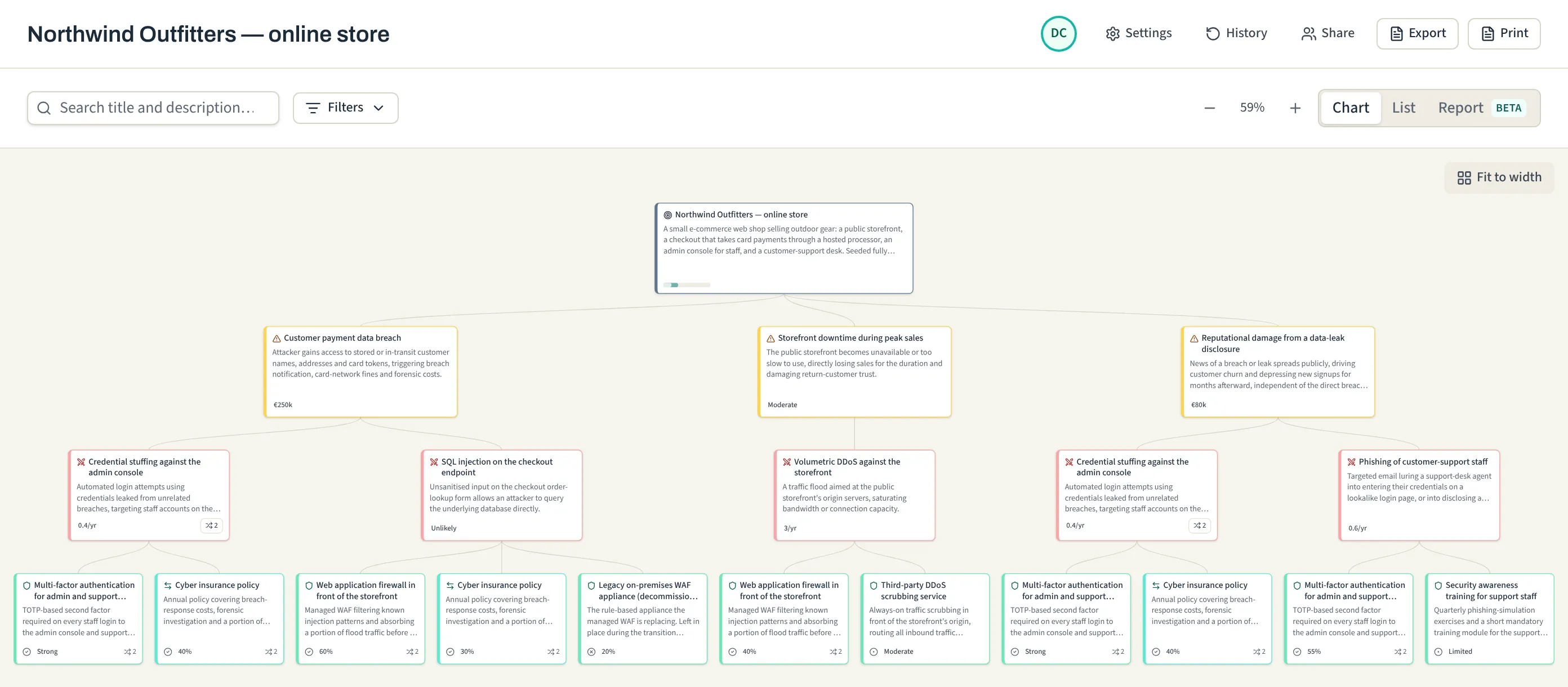
Give risks an impact and attacks a likelihood, and ArgueSecure works out the expected annual loss three ways: inherent with no defences, current with what is implemented, and target with everything planned done as well. Shelved defences never count.
- Missing values are visible. A blank impact or likelihood leaves the pair out of the total, which is then shown as a lower bound with the number of valued paths. A blank strength counts as no reduction.
- Amounts in your currency. Results come with a reduction percentage and are never mapped to low, medium and high.
- Per occurrence and per year. Impact is the loss each time, likelihood is a rate per year, and a rate above 1 is accepted. The field shows the equivalent chance of at least one occurrence in a year.
- Every figure in one place. A node's Statistics tab shows its inherent, current and target figures side by side.
- Scales you define. Administrators define named sets of impact, likelihood and strength bands, and choose one when creating an assessment.
The numbers in plain terms, with a worked example.
Reports and exports
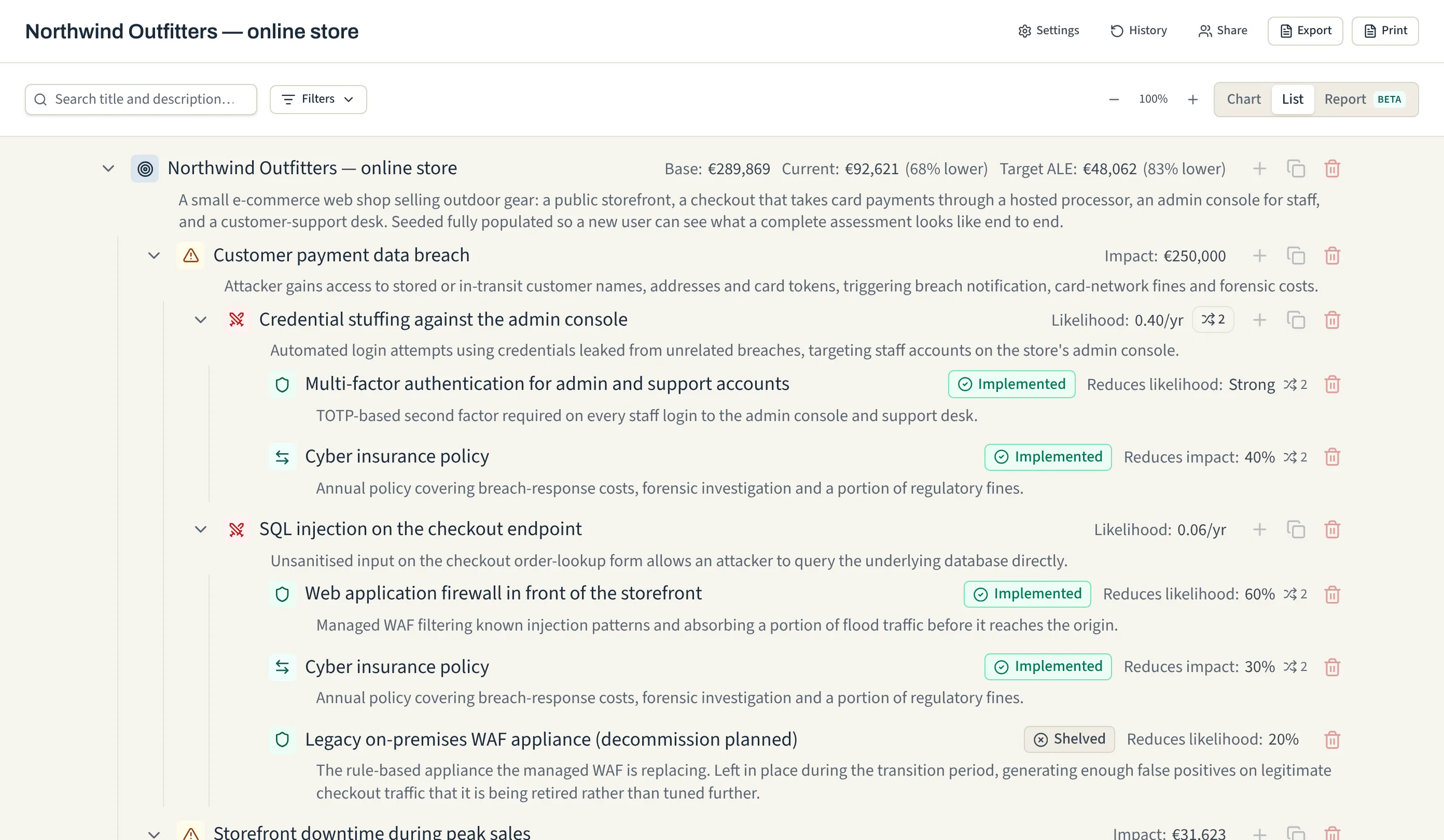
The report (marked Beta in the app) is for reading, printing and sending to people who do not need the editor. Every section has a switch, and a report that leaves sections out says which.
- The sections. Cover, executive summary, the plan with cost and benefit, risk register, defences ranked by cost benefit and by opportunity, transfers, control coverage, the full assessment and appendices.
- Cost benefit. Implemented controls are ranked by the loss that would return if each were switched off, against its cost. A control that costs more than it saves is highlighted.
- A summary in your words. Anyone who can edit writes the executive summary.
- Exports. HTML, CSV, JSON, Excel and Word, using the options currently set. JSON is a complete, portable copy of the assessment.
- Print to PDF. A print stylesheet puts page breaks between sections and repeats table headers. Choose Save as PDF in the browser's print dialog.
History, versions and undo
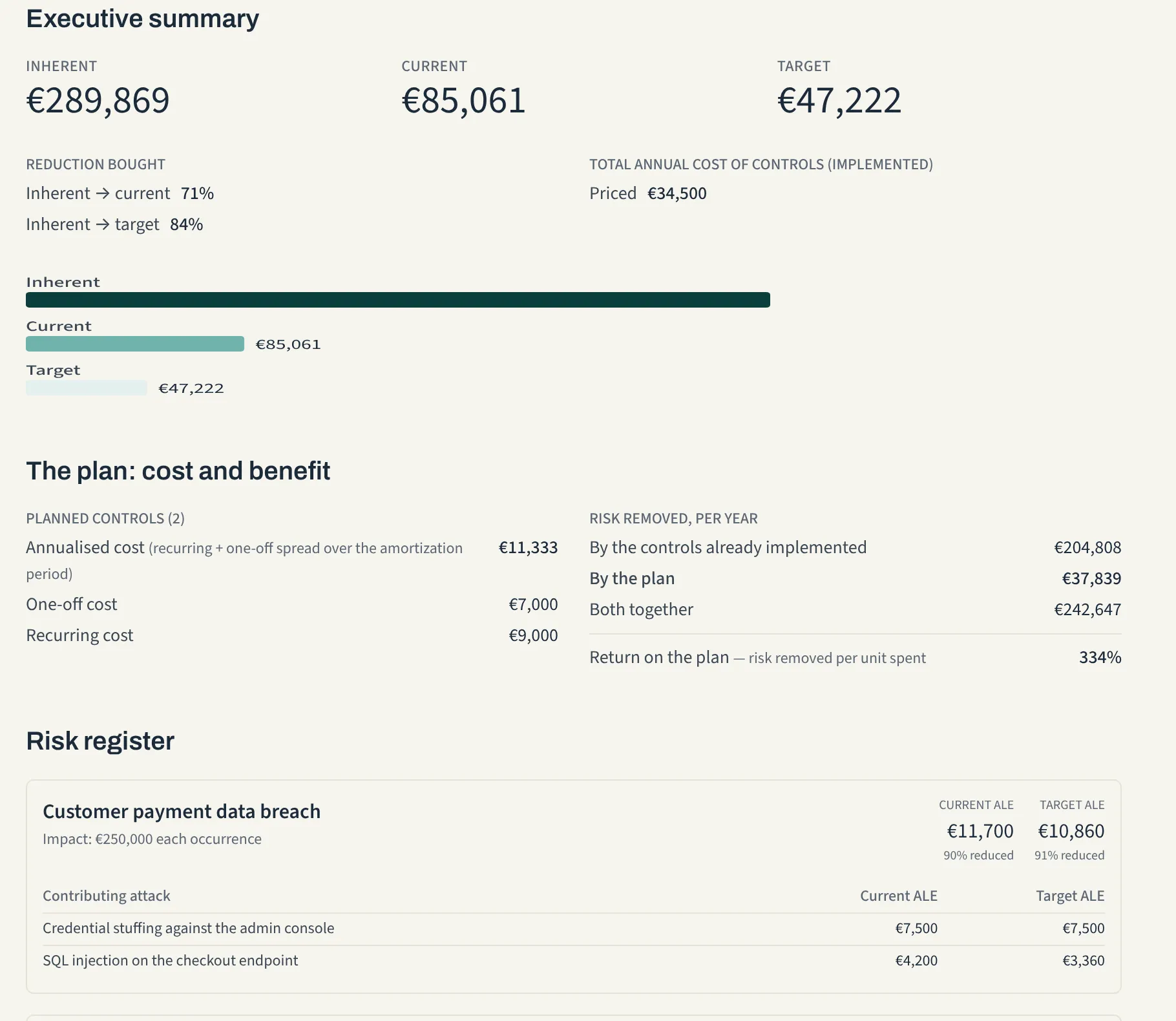
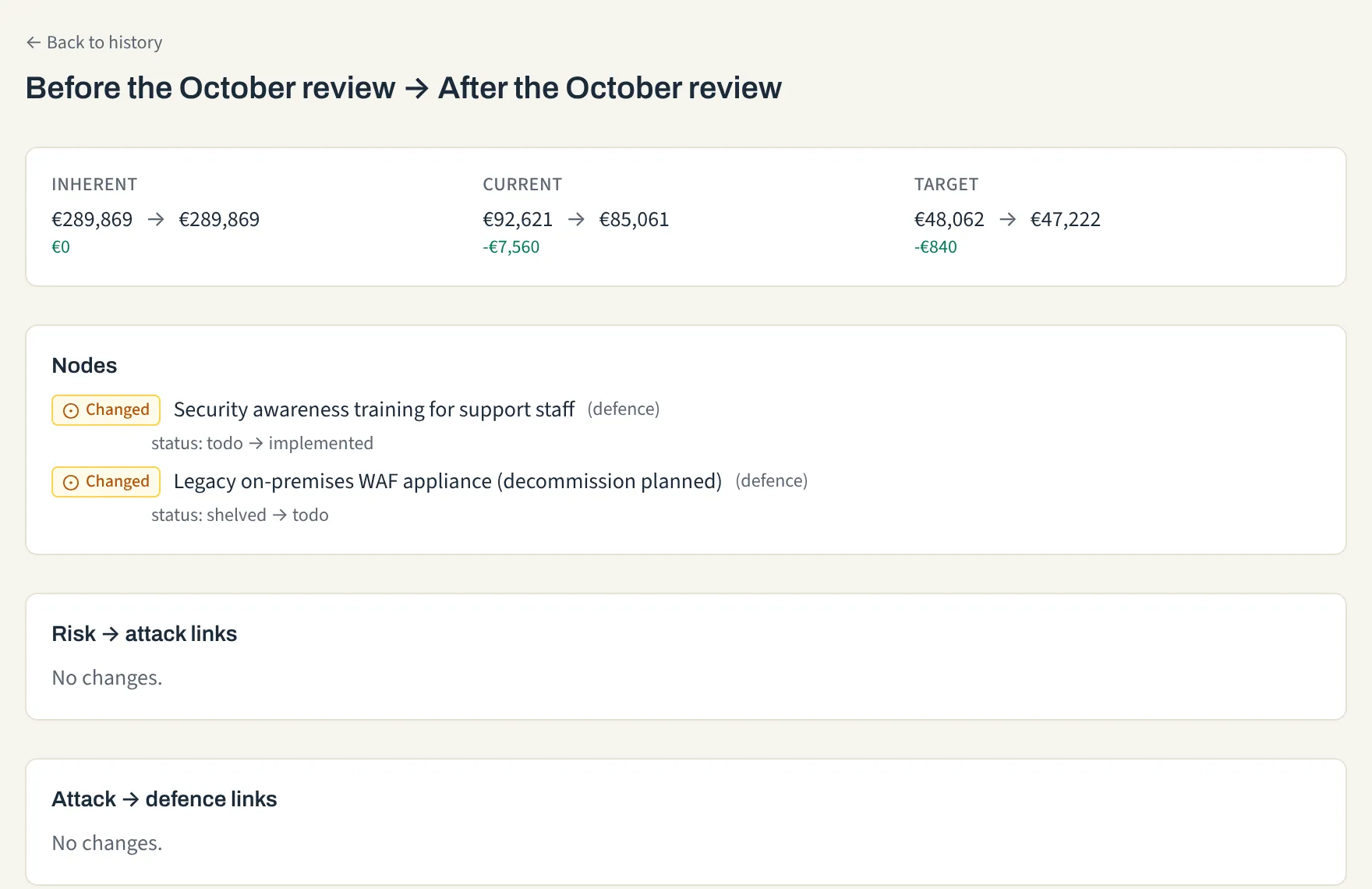
Every change to an assessment is recorded, so nothing is lost by accident and a conclusion can be traced back to the changes that led to it.
- Versions. A version is a saved copy of the whole assessment with its totals. Versions are saved automatically after 30 minutes without edits or after 50 changes, and whenever you ask, with a name if you like.
- Compare and restore. View a version, compare it with the one before it, see its figures, or restore it. Restoring first saves the current state as a safety copy.
- Undo. Ctrl or Cmd with Z undoes the last structural change: adding, deleting, moving or linking a node. A single field edit is reverted from the History tab of its node.
- A trash. A deleted assessment can be restored for 30 days by default, or erased for good sooner, for example when an engagement ends.
Versions protect against mistakes made in the app. They are not a backup of the server; backups are the administrator's job.
Templates
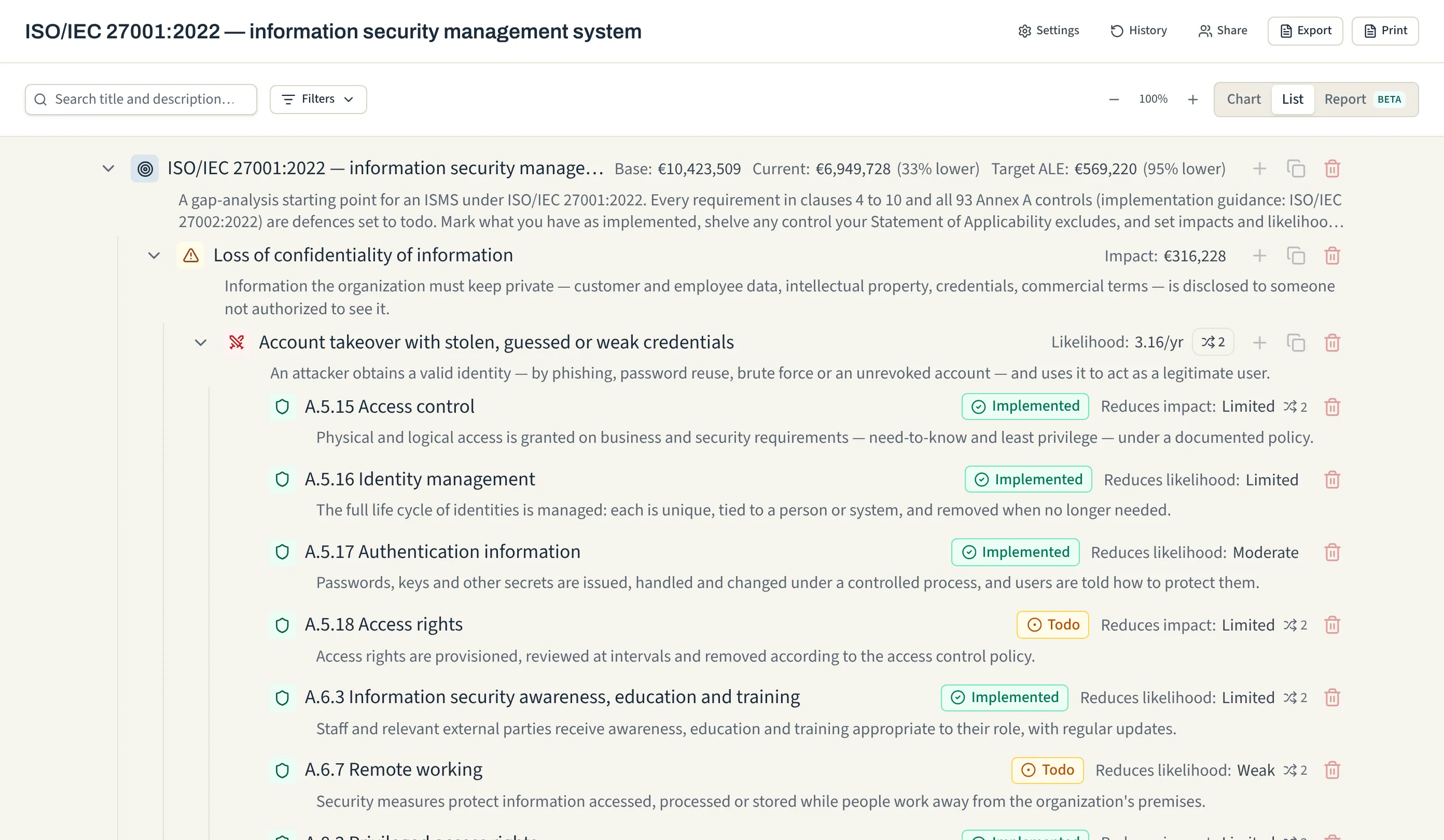
Templates give a team something to react to when a blank page is hard to start from. Fourteen are bundled: a worked example, four system archetypes and nine standards and regulations. Administrators can add their own, or publish a copy of an assessment as a template.
The nine standards templates are gap-analysis starting points. Each control or obligation is a defence set to to do, placed under the threats it addresses. The standards page explains how a gap analysis works in the tool and what it is not.
| Template | What it contains |
|---|---|
| Northwind Outfitters (demo web shop) | A worked example of an assessment in progress. |
| Four system archetypes | Public web application, multi-tenant SaaS, corporate internal network, connected home device. |
| ISO/IEC 27001:2022 | Clauses 4 to 10 and all 93 Annex A controls (ISO/IEC 27002 guidance). |
| ISO/IEC 42001:2023 | Clauses 4 to 10 and all 38 Annex A controls of the AI management system standard. |
| EU AI Act | The operator obligations of Regulation (EU) 2024/1689. |
| SOC 2 | All 61 Trust Services Criteria: CC1 to CC9, Availability, Confidentiality, Processing Integrity and Privacy. |
| GDPR | The controller and processor obligations of Regulation (EU) 2016/679. |
| NIS2 | The obligations Directive (EU) 2022/2555 places on essential and important entities, including the Article 21 measures and incident reporting deadlines. |
| CIS Controls v8.1 | All 18 Controls and 153 Safeguards, with the 56 Implementation Group 1 safeguards marked. |
| NIST CSF 2.0 | All 106 Subcategories of the six Functions, Govern to Recover. |
| EU Cyber Resilience Act | The essential requirements of Annex I and the manufacturer obligations of Articles 13 and 14 of Regulation (EU) 2024/2847. |
Start from a template
Create an assessment from it, remove the risks, attacks and defences that do not apply, adjust and quantify the ones that do, and add what is missing. Mark each control implemented, planned or out of scope, and the report lists what is still open.
Take parts of a template
In a blank or existing assessment, use Add from template on a node, or From template in the new-node dialog, to copy in only the relevant risks, or to use its attacks and defences as a starting point. Only titles and descriptions are copied; values are left behind. A node whose title already exists is linked instead of copied a second time.
Optional local assistant
ArgueSecure can use a language model that runs on your own server, through llama.cpp. It is
absent and off by default, and an instance without it is fully supported.
What it does
- Suggests risks, attacks and defences under a node, five at a time, or one in the new-node dialog. It sees the target, the parent node and the titles already under it. It does not see the numbers.
- Drafts the report's executive summary as a background job and notifies you when it is ready. The draft appears beside your own summary and is marked as machine-drafted if you use it.
- Answers questions about ArgueSecure from the help pages. It sees the help text and nothing from any assessment.
What it never does
- Nothing is used until a person accepts it. A suggestion becomes a node only when someone presses Add on that one proposal. Nothing is pre-selected and nothing is accepted in bulk.
- Nothing leaves your server. The model runs in a container on your own hardware, and no assessment text is sent to an outside service.
- Generated text is shown as plain text, marked as generated where it appears.
Two models
You choose one of two open-weight models when you install the assistant. Both are Google's Gemma 4, in 4-bit versions trained to stay accurate at that size, and both run on the CPU.
| Preset | Model | Needs about | Good for |
|---|---|---|---|
| small (recommended) | Gemma 4 E4B | 6 GiB of memory, a 4.2 GB download | Almost any server that can spare the memory. |
| large | Gemma 4 26B-A4B, a mixture of experts | 28 GiB of memory, a 14.2 GB download | A larger model for a server with memory to spare. In the tests below it did no better than small, and it is a little slower. |
In the project's measurements, both answered a test question from the help pages correctly four times out of four, and neither invented figures when drafting a report summary. On four cores of a desktop processor, five suggestions take about 20 seconds and the summary of a 73-node assessment about two minutes. Installing and switching models, speed and memory and why a person always accepts what it writes are in the assistant guide.
Two-factor and single sign-on
There is no public registration and no default account. The first administrator is created on first start, and after that administrators create accounts one at a time or in bulk from a CSV file.
- Two-factor authentication. Any account can add a code from an authenticator app (time-based codes, RFC 6238) with ten single-use recovery codes. It needs no email server or SMS. Administrators can require it for everyone and can remove a lost second factor.
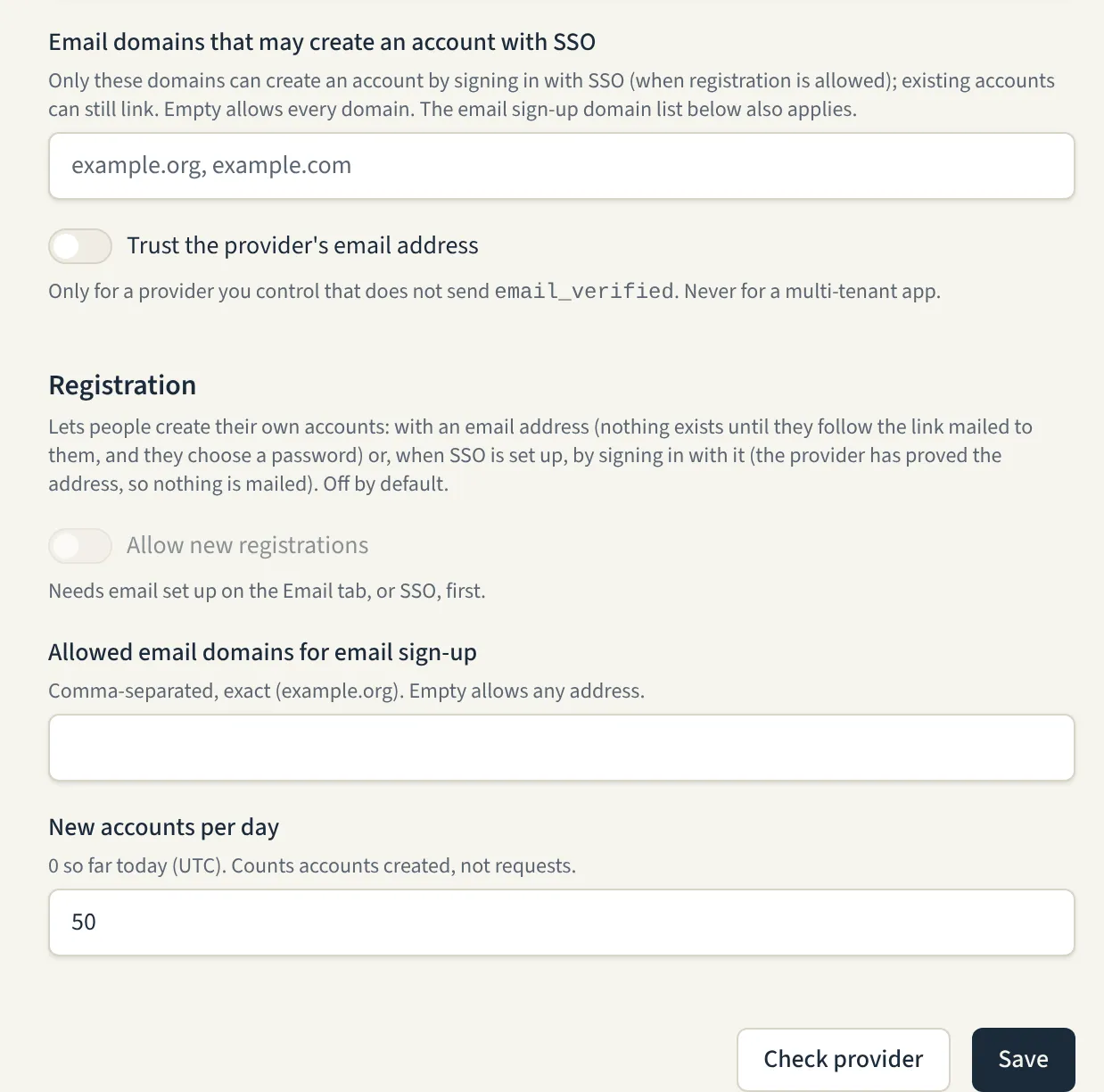
- OpenID Connect single sign-on. Connect your organisation's identity provider and let people sign in with it. An account can use both the provider and its password. New accounts are created only for the email domains you allow. New accounts start with no access, and administrators can turn password sign-in off for everyone else.
- Your sessions. Your profile lists the browsers you are signed in on, and you can sign any of them out.
Administration
The admin area is not open on the public demo, so this is what an administrator finds there. Administrators can also open and manage every assessment on the instance.
- UsersCreate accounts one at a time, or import a CSV file after a preview of every row it will create or reject. A new password is shown once, on a sheet you can print for a workshop. Deactivate an account, reset its password, make it an administrator, or delete it and transfer what it owns.
- AuthenticationRequire two-factor authentication for everyone, connect an OpenID Connect provider and make it the only way in for everyone but administrators. Remove a second factor someone has lost.
- Scales and defaultsThe currency and the scale new assessments start from. A scale names the bands for impact, likelihood and strength; Standard and Small organisation are built in, and you copy one to make your own.
- AI assistantSwitch the local assistant on or off, and each of its features separately: help answers, suggestions and summary drafts. The tab shows which model the server runs.
- Security logSign-ins and refusals, changes to accounts, settings and sharing, and exports, kept for 90 days by default. Filter by date and event, and download as CSV or JSON; the download is recorded too.
- TemplatesAdd your own templates, or publish a copy of an assessment as one.
- Instance settingsWhether assessments may be made public, and how long a session lasts.
Smaller things
- Light and darkChoose a light or dark theme, or follow your system, from the sidebar. Text and controls meet WCAG AA contrast in both.
- NotificationsA bell in the sidebar tells you about mentions, assignments and finished summary drafts. Your dashboard lists what is assigned to you and where you were mentioned.
- KeyboardAdd, move between, open and delete nodes without the mouse, for a facilitator typing during a workshop. Press ? in an assessment for the map.
- Share linksEach assessment can have one revocable read-only link that opens without an account. Revoking it stops it at once. Making an assessment public is read-only too.
- ExportsHTML, CSV, JSON, Excel and Word. Titles and descriptions are written as text in every format, and spreadsheet formulas are neutralised in the CSV.
- Print to PDFPrint the chart, the list or the report from the browser, with a stylesheet made for paper.
- TrashDeleted assessments stay restorable for 30 days by default, then are erased with their history, versions and comments.
- No telemetryThe app sends none. It checks new passwords against the Pwned Passwords range service, which receives only part of a hash, contacts your identity provider if you configure single sign-on.